How to Correctly Set Up External or Guest Users in Dynamics 365 Finance and Operations
Setting up users who are not part of the Azure AD tenant linked to a Dynamics 365 Finance and Operations environment involves more than simply altering the Provider field. This guide covers the full process including authentication configuration, Azure AD app registrations, licensing requirements, and enabling access for users without an Azure AD account.
Add Users from External Azure AD
The simplest scenario involves external users with an organisational account from another Azure AD tenant. Authentication must be performed by the external user's own Azure AD, since your tenant cannot verify whether their credentials are valid or the account is still active.
When adding an external user, alter the Provider field on the User details page. This field defaults to https://sts.windows.net/. To authenticate in another tenant, append the external user's domain to the default value.
For example, if your D365 F&O environment runs on the tenant Dynamicspedia.com and you want to add a user with the email andre@axploring.onmicrosoft.com, the Provider field should be set to: https://sts.windows.net/axploring.onmicrosoft.com. Without the correct value, the user will receive an authentication error.

However, this alone is not the complete procedure — additional steps are required.
App Registrations on Azure Active Directory
External users may encounter errors when trying to access certain functionalities such as workflow configurations or the Open in Excel feature.


These are separate client applications that must be authenticated via your Azure Active Directory. For security purposes, this is not open to any tenant — you need to add the user as an external/guest user to your tenant.
Follow these steps in Azure Active Directory:
- Open the Azure portal.
- Go to Azure Active Directory.
- Open Manage > Users.
- Click New user > Invite external user.
- Complete the details of the external user.

- Click Invite.
Users can also be managed via the Microsoft 365 admin center, but guest user creation redirects to the Azure portal.
When the user logs in to one of the client applications, authentication will succeed but a confirmation prompt appears to link the user and grant permissions.

After accepting, the user should have access to the workflow editor and the Office add-in. Note that the workflow editor may still produce errors in some cases — if encountered, logging a ticket with Microsoft Support is recommended.
Once the user is added as a guest in your Azure AD, they will also be visible when importing users into D365 F&O from Azure AD.
License Requirements
The Microsoft Dynamics 365 licensing guide distinguishes between two types of external users. External users who are effectively performing the same tasks as internal employees (not customers, suppliers, or end consumers of your services) are considered internal users and require a valid Dynamics 365 licence.
To fully meet Microsoft licensing requirements, the external user should be invited as a guest to the Azure AD tenant and assigned a proper licence. Licence assignment is done in the Azure portal. While there is no direct enforcement today, it is best practice to allocate licences. If you use Azure AD group integration in D365 F&O, users can be automatically created in F&O, but this requires the licence to be assigned beforehand.
For further details, see Create new users – Microsoft Learn.
External Users Without an Azure AD Account
You can also invite external users without an Azure AD account — including those with Microsoft accounts or Gmail addresses. For Microsoft account guidance, see Johan Persson's blog post.
To set up a Gmail user:
- Create a new guest user with a Gmail email address in Azure AD.

- Assign a product licence to the user in Azure AD.
- Import the user in Dynamics 365 Finance and Operations.

- Assign the required security roles.
- The user logs in with their Gmail email address.

- A verification code is sent to the Gmail address.

- The user retrieves the code from their Gmail inbox.

- On first login, the user is prompted to accept requested permissions.
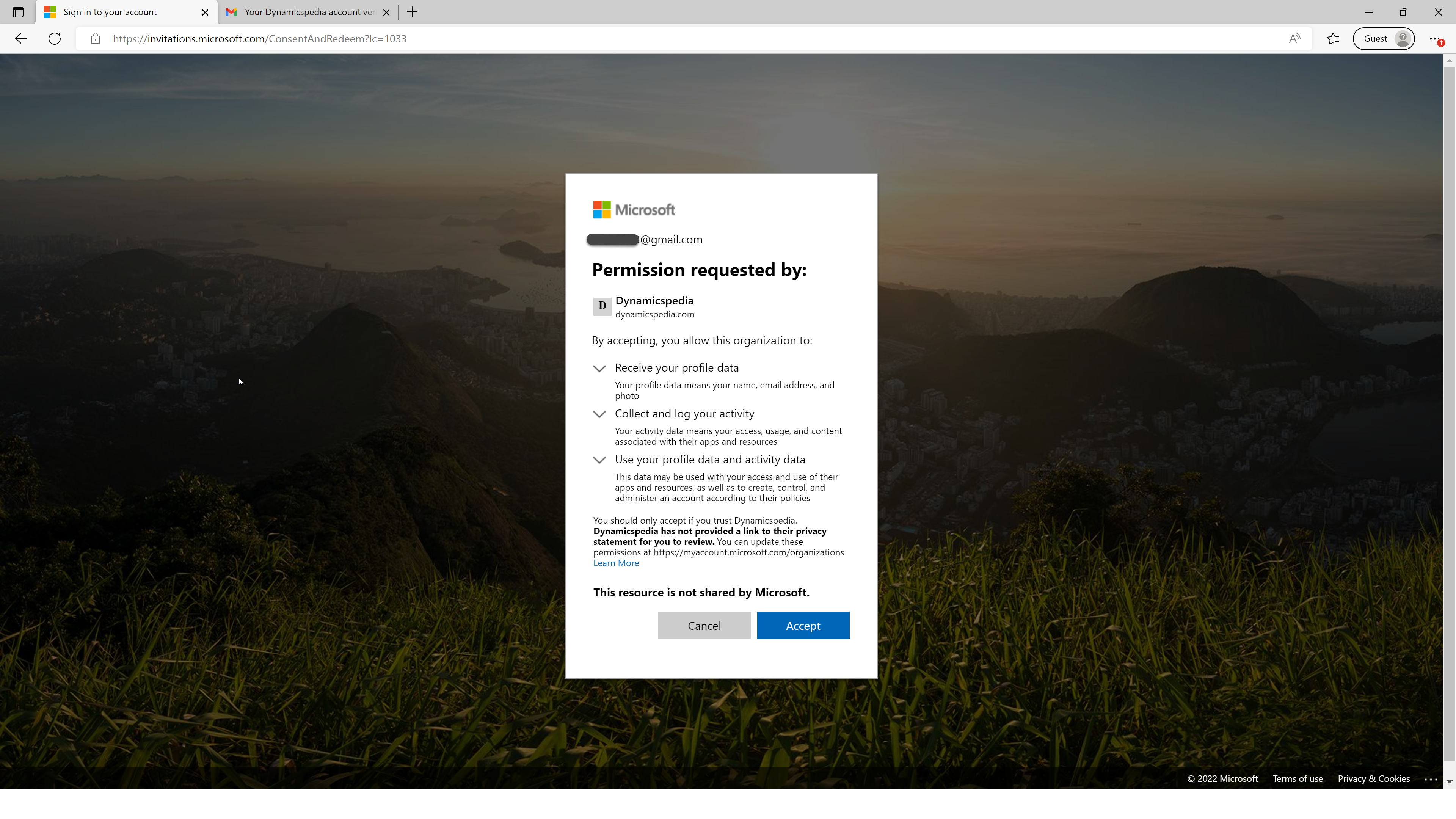
After accepting, the user is authenticated and can access all parts of the application as per their allocated security roles.